
What is Localhost?
Many beginning web developers encounter the term "localhost." It's fundamental to website development, allowing users to test a project on their own computer before deploying it online. Let's take a closer look at what this term means and how to use it correctly.
Basic Concept
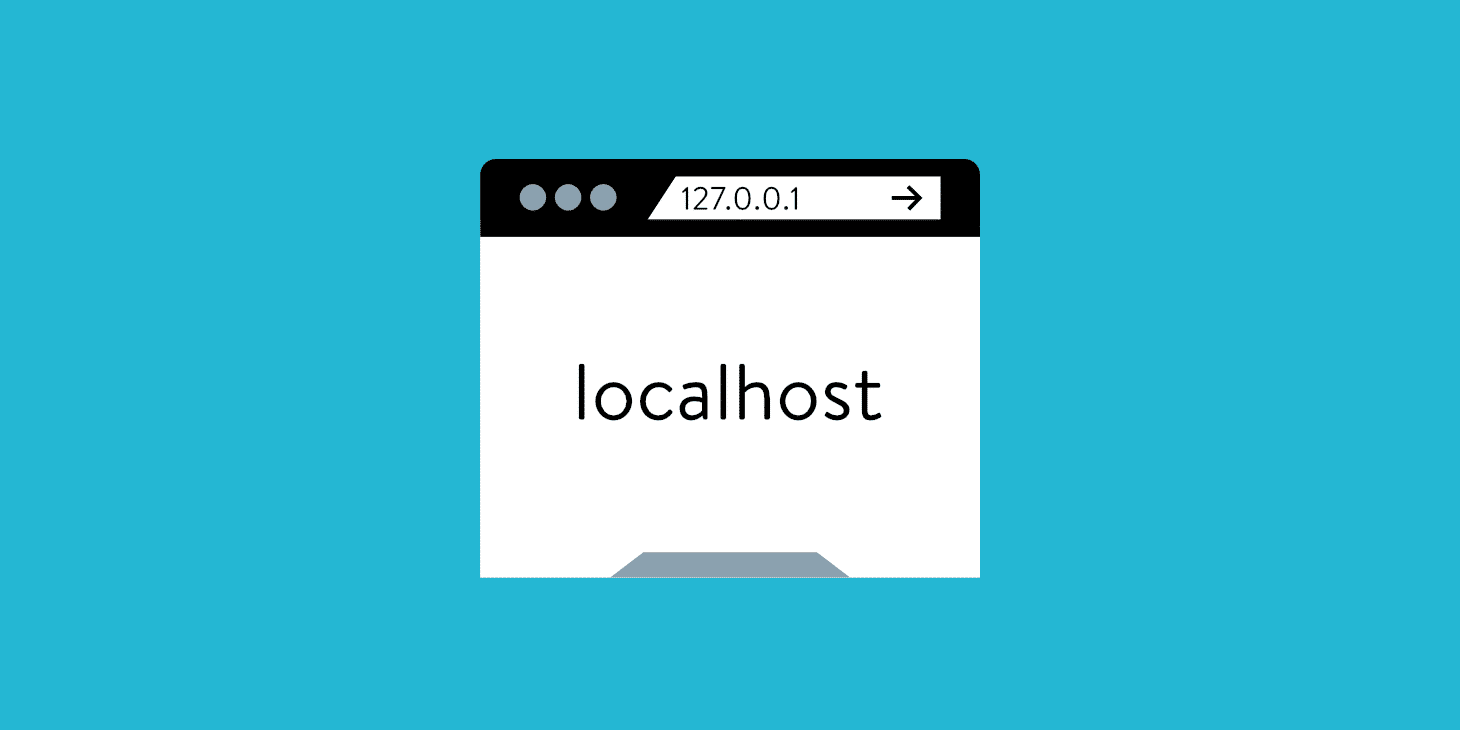
"Localhost" is a special name a computer uses to address itself. When a user types this word into the browser's address bar, the system understands that the user should return to this same computer when making a request. Technically, the name "localhost" is associated with special network addresses that a computer uses to call itself. The most common of these is 127.0.0.1.
Such addresses belong to the "loopback interface" range. This virtual network interface does not require a physical connection to the network. All information transfer occurs internally.
How the loopback interface works
When a request is sent to the address "127.0.0.1," the operating system immediately returns it. No data is transmitted to the external network. This process creates a digital closed loop, which provides:
- no transmission delays;
- increased security;
- the ability to work offline.
In Linux and macOS, this technology appears as a network device named "lo." In Windows, this functionality initially operates "under the hood" (at the driver level), hidden from the user, but performs exactly the same task—closing the network request within the computer.
Name Resolution Process
The first and most important step the operating system performs is checking the local file named hosts. It is physically located:
- on Linux and macOS operating systems, at the path: "/etc/hosts";
- on Windows, it can be found in the directory: "C:\Windows\System32\drivers\etc\hosts"
Initially, this file contains key mappings; for IPv4, they look like this: "127.0.0.1 localhost." And for the more modern IPv6 protocol: "::1 localhost."
These lines are direct instructions to the system. They state: "Immediately redirect all requests for the name 'localhost' to the IP address 127.0.0.1."
It's important to understand that the hosts file has absolute priority. When a computer tries to figure out where a domain name leads, it first looks in this local file. Only if it doesn't find the required entry there does it turn to global DNS servers on the internet.
This mechanism offers a wide range of possibilities. For example, developers can temporarily add an entry like "127.0.0.1 test-site.uz" to this file. After that, even without an internet connection, the browser will open the "site" from the user's local server.
Use in Web Development
Developers actively use localhost to create websites. After installing a web server, you can open a browser and navigate to "http://localhost" to view the results of your work.
This approach offers several advantages:
- quick testing of changes;
- isolated development environment;
- savings on hosting;
- works in any conditions.
Localhost is also used to test network functions using the "ping" utility. It is sometimes used to host game servers on your own computer.
Setting Up a Local Server
To work with modern websites that use databases and complex logic (for example, online stores or social networks), simply opening an HTML file in a browser is not enough. Running them requires a special environment—a local server. This program turns the user's computer into a miniature version of a real web server, capable of executing code and working with data.
For the convenience of developers, ready-made software packages have been created that install everything needed in a single program. Among these, several popular solutions stand out:
- Open Server—a multifunctional platform;
- XAMPP—a cross-platform solution;
- Denver—an option for beginners.
These software packages include a web server, a database management system, and a PHP interpreter. For static websites, you can use built-in Python or Node.js tools.
Solving Common Problems
When working with a local server, sometimes situations arise that are easily and standardly resolved.
Busy Port
If port 80 is occupied by another program, the server will not start. Use alternative ports 8080 or 8888, accessing the server as "http://localhost:8080".
Firewall Blocking
Antivirus programs may be blocking the local server. Check your firewall settings and allow access for the web server, or confirm the action in the pop-up window.
Access Permissions
On Linux/macOS, additional permissions may be required to access server files. This can be resolved by changing permissions in the terminal.
Terminology Differences
While the terms "localhost" and "127.0.0.1" are often used interchangeably, there is a technical difference between them. "localhost" is a hostname, while "127.0.0.1" is a specific IP address.
It's important to understand this difference when configuring software. When using a name, the system must convert it to an address. In rare cases, this can lead to incorrect interpretation. Therefore, it is recommended to use the direct IP address "127.0.0.1" for work.
Many professionals started working on a local server on their own computer. Mastering "localhost" is a basic step in learning web development. This tool allows you to create and test modern web applications in a secure and isolated environment.
Answers to popular questions
How soon can I start using the service?
The user account is opened immediately after the application is submitted.
Immediately after making the payment, you can start using the service immediately.
Author of the article:


Editor-in-Chief
Danaev Almaz